Custom Fonts & CSS
CSS Metadata
The original Keyboard Layout Editor provided fine-grained control over keyboard CSS style via a css metadata field defined in a layout. This allows using any web font (like Google Fonts) for key label rendering.
When you import a KLE layout that contains CSS metadata, kle-ng displays that value in the CSS field of the Keyboard Metadata panel.
Supported CSS Features
kle-ng supports only a minimal subset of CSS for loading fonts:
@import url(https://fonts.googleapis.com/css2?family=Noto+Sans+JP);The font name is automatically extracted from the URL and applied globally to all canvas text.
INFO
It is not possible to define different fonts for different key labels — the font applies to all labels on all keys.
All other CSS expressions are ignored and have no effect.
Adding a Custom Font
Adding a Font from Google Fonts
- Open the Keyboard Metadata panel
- In the CSS field, add an
@importstatement with your Google Fonts URL - The font name is automatically extracted and applied to canvas rendering
Example
Adding Noto Sans JP:
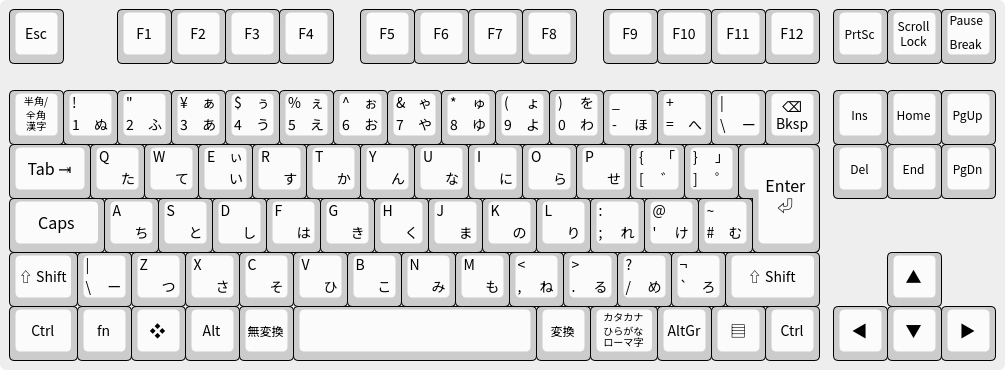
@import url(https://fonts.googleapis.com/css2?family=Noto+Sans+JP);This is especially useful for layouts with international characters, special symbols, or stylistic typography. Following layout has been rendered with Noto Sans JP on a system without Japanese fonts installed.
Finding Google Fonts URLs
- Go to fonts.google.com and select a font.
- Click Get font, then Get embed code.
- Copy the URL from the
@importline shown (e.g.,https://fonts.googleapis.com/css2?family=Roboto+Mono). - Paste it into the CSS field as shown in the example above.
INFO
The font loads from Google's servers when the layout is opened. If the browser cannot reach Google Fonts (e.g., in certain regions or behind a firewall), the fallback system font is used instead.
Troubleshooting
Font Not Appearing
Font doesn't appear after adding the CSS — The font is applied when the CSS field loses focus (on blur). Click outside the CSS text area to trigger the load. A notification appears when the font is applied successfully.
System Font Still Showing
Labels still show the system font — Check that the @import URL is correct and that the family name in the URL matches exactly. If you typed the font name manually, ensure capitalization and spacing match the Google Fonts URL format (e.g., Noto+Sans+JP not Noto Sans JP).
Mixed Fonts
Different fonts for different keys are not possible — kle-ng applies one font globally. If you need mixed scripts (e.g., Latin and Japanese on the same layout), choose a font that supports both character ranges, such as Noto Sans.
CSS Metadata in KLE Export
The CSS field value is preserved when exporting to KLE JSON format. This means layouts with custom fonts remain compatible with other KLE-based tools.