Layout Editor
The canvas editor is the main working area of kle-ng. It provides a full set of tools for creating and editing keyboard layouts.
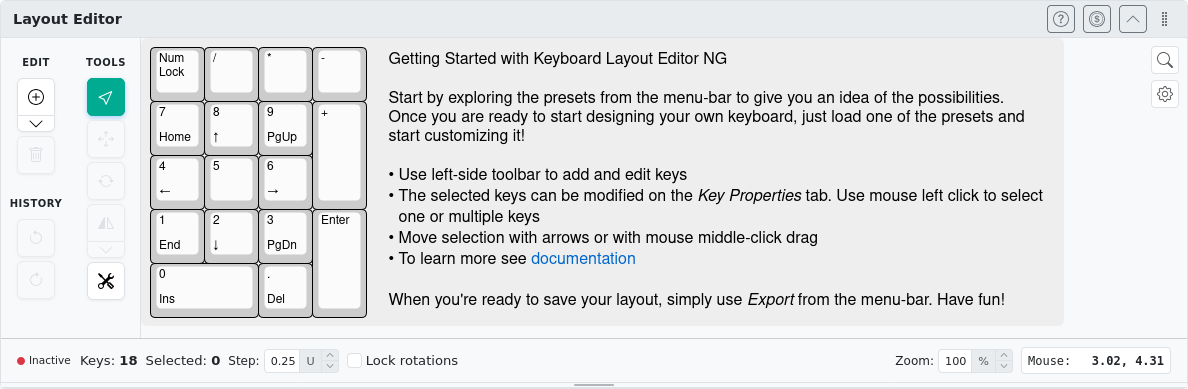
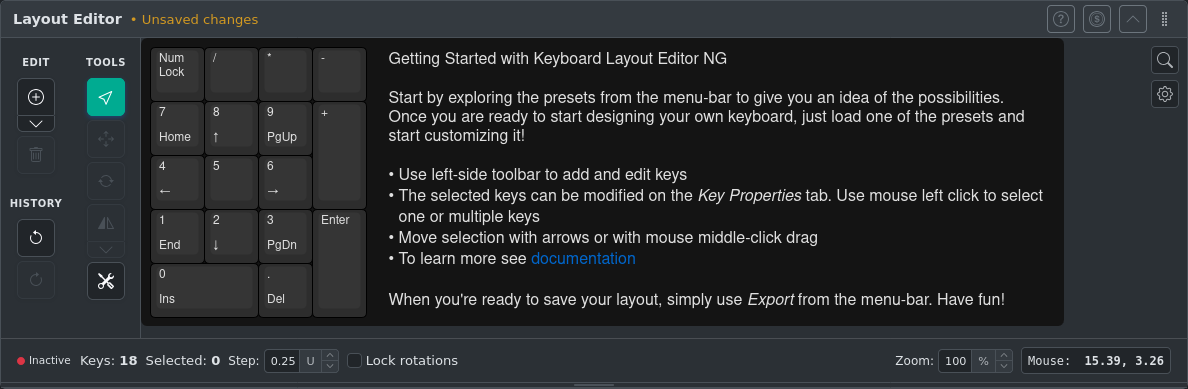
Canvas Tools
The toolbar on the left side of the canvas contains the main editing tools:
| Icon | Tool | Description |
|---|---|---|
  | Selection Tool | Select, move, resize keys |
  | Move Exactly Tool | Move keys by a precise amount |
  | Rotate Selection Tool | Rotate selected keys around anchor points |
  | Mirror Tool | Create mirrored copies of selected keys |
  | Extra Tools | Legend Tools, Matrix Coordinates, Move Rotation Origins, Theme Tools |
Mouse Controls
| Action | Result |
|---|---|
| Left Click | Select a key |
| Left Click + Drag | Create a rectangle selection |
| Ctrl + Left Click | Add/remove key from selection |
| Middle Click + Drag | Move selected keys |
Keyboard Shortcuts
| Shortcut | Action |
|---|---|
| Ctrl+C | Copy selected keys |
| Ctrl+V | Paste keys from clipboard |
| Ctrl+X | Cut selected keys |
| Ctrl+A | Select all keys |
| Del / Backspace | Delete selected keys |
| Ctrl+Z | Undo last action |
| Ctrl+] | Select next key |
| Ctrl+[ | Select previous key |
| Arrow keys | Nudge selected keys |
| Shift+←→ | Adjust key width |
| Shift+↑↓ | Adjust key height |
| A | Add new key |
| / | Toggle label search bar |
| Shift+M | Open Move Exactly Tool |
| Shift+R | Open Rotate Selection Tool |
Selection Tool
The Selection Tool is the default tool for working with keys.
Selecting Keys
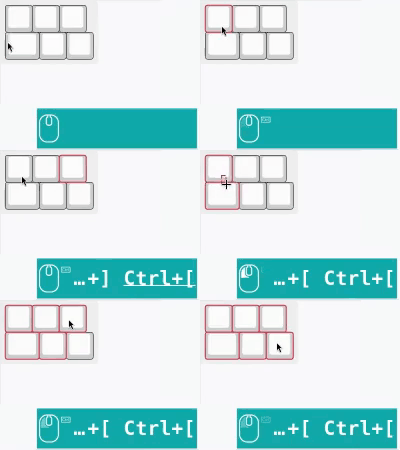
- Click a key to select it
- Click and drag on empty canvas area to draw a rectangle selection
- Hold Ctrl while clicking to add or remove keys from the current selection
- Use Ctrl+[ and Ctrl+] to cycle through keys in layout order
Moving Keys
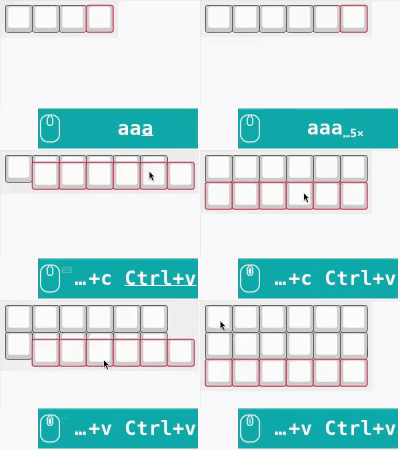
- Middle mouse button: Click and drag to move the selection
- Arrow keys: Nudge selected keys by the configured step size
Movement snaps to a configurable step size (defined in U, where 1U = width of a standard key). The step size can be set in the canvas footer.

Lock Rotations
The Lock rotations option determines how rotated keys move:
| Lock Disabled | Lock Enabled |
|---|---|
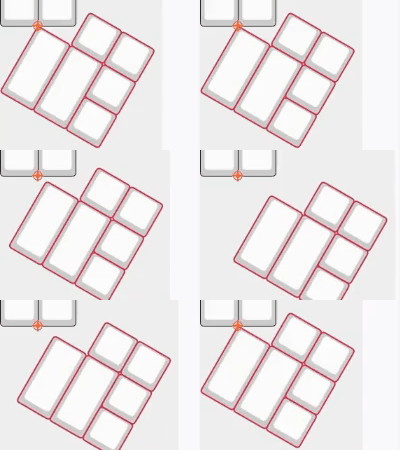 | 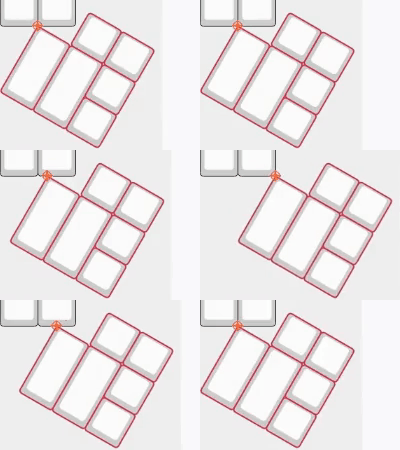 |
| Rotation origin stays fixed; keys move in rotated coordinate space | Rotation origin moves with the keys; movement occurs in normal coordinate space |
Move Exactly Tool
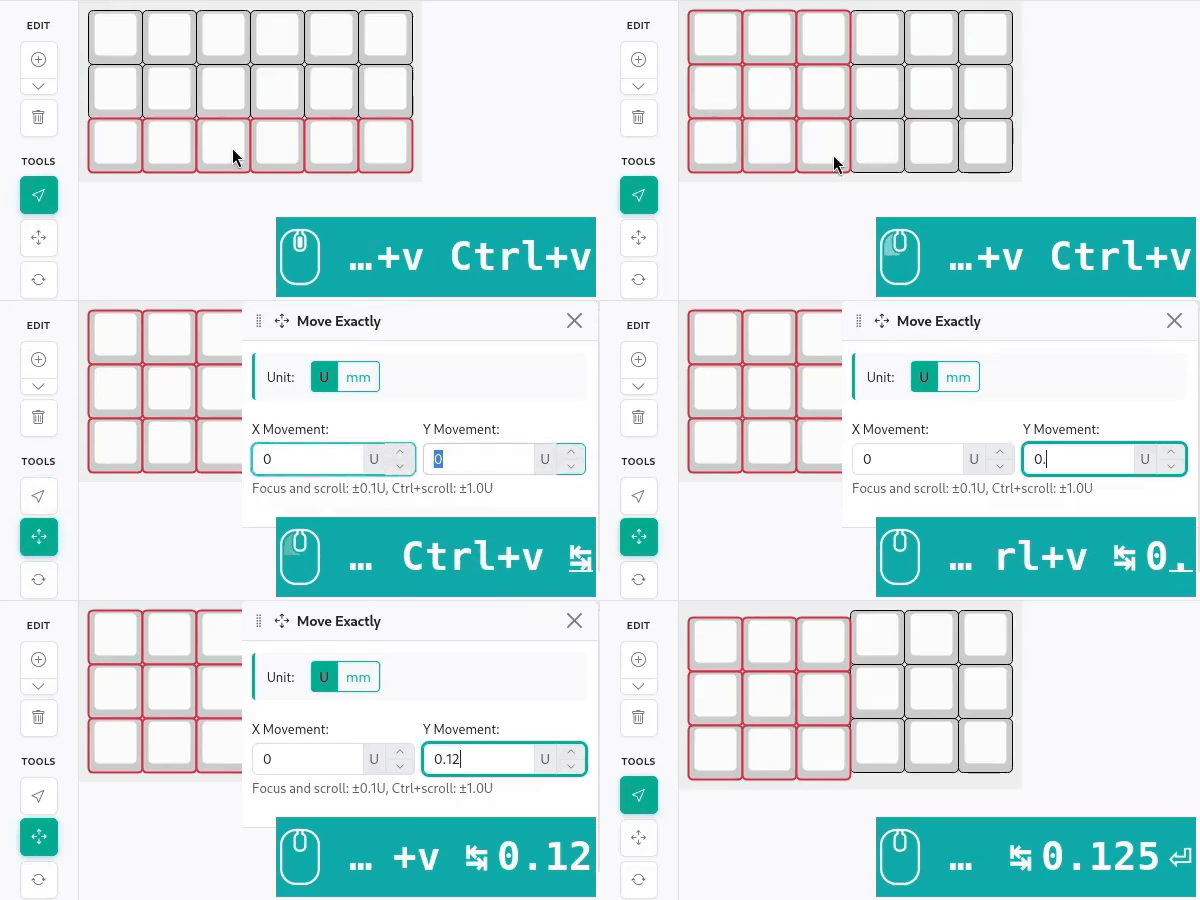
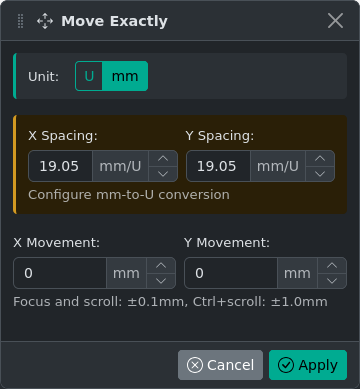
For precise movement use the Move Exactly tool (Shift+M).
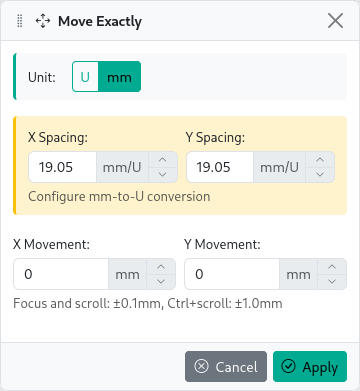
The tool allows movement to any position, not limited to the step size. It also supports movement in millimeters by specifying the spacing (mm per U). The default spacing is 19.05 mm/U for both X and Y axes, which is standard for Cherry MX style switches.
Using the Tool
Rotate Selection Tool
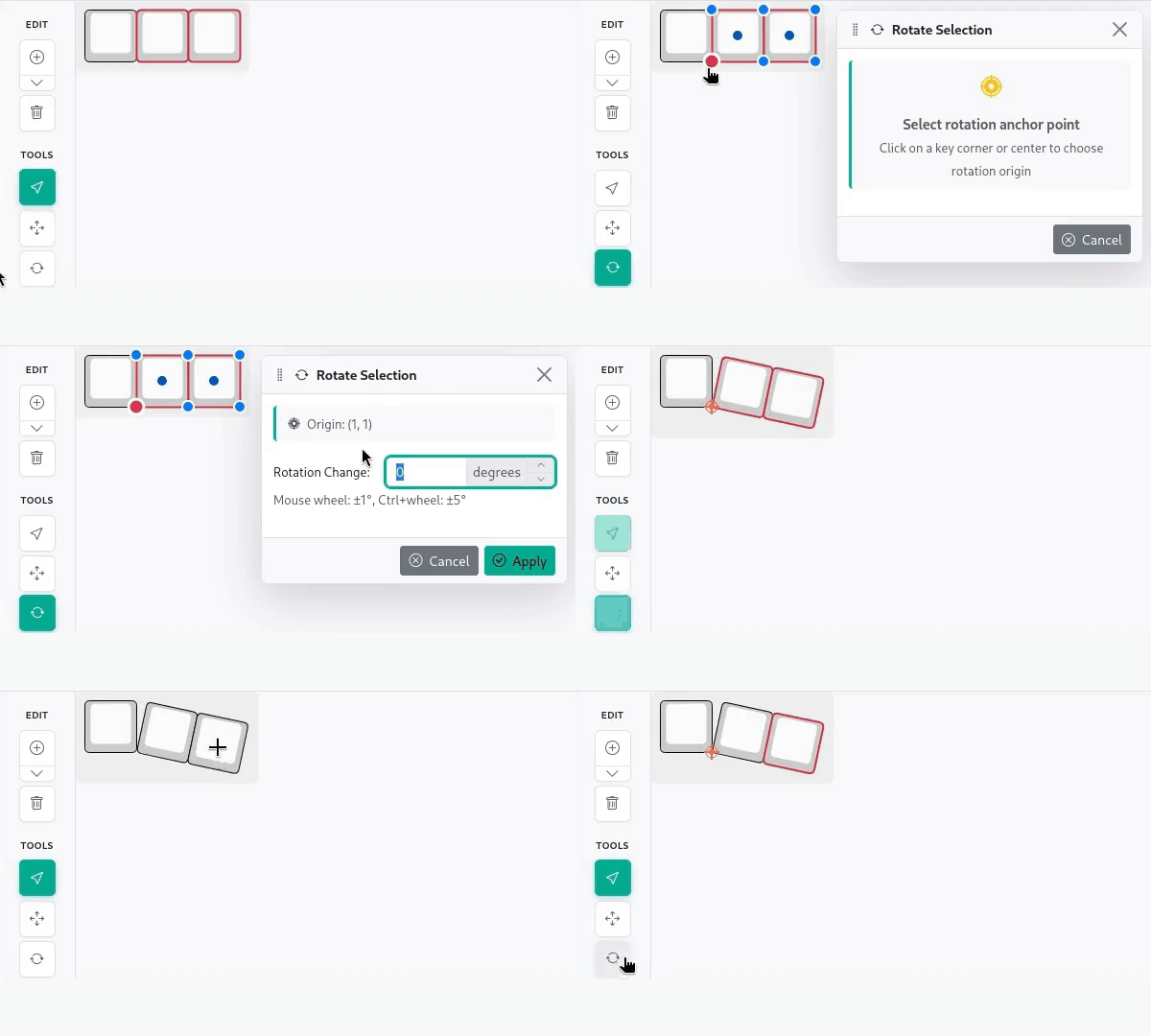
Rotate selected keys around anchor points (key corners and centers) using the Rotate Selection tool (Shift+R).
Using the Tool
Mirror Tool
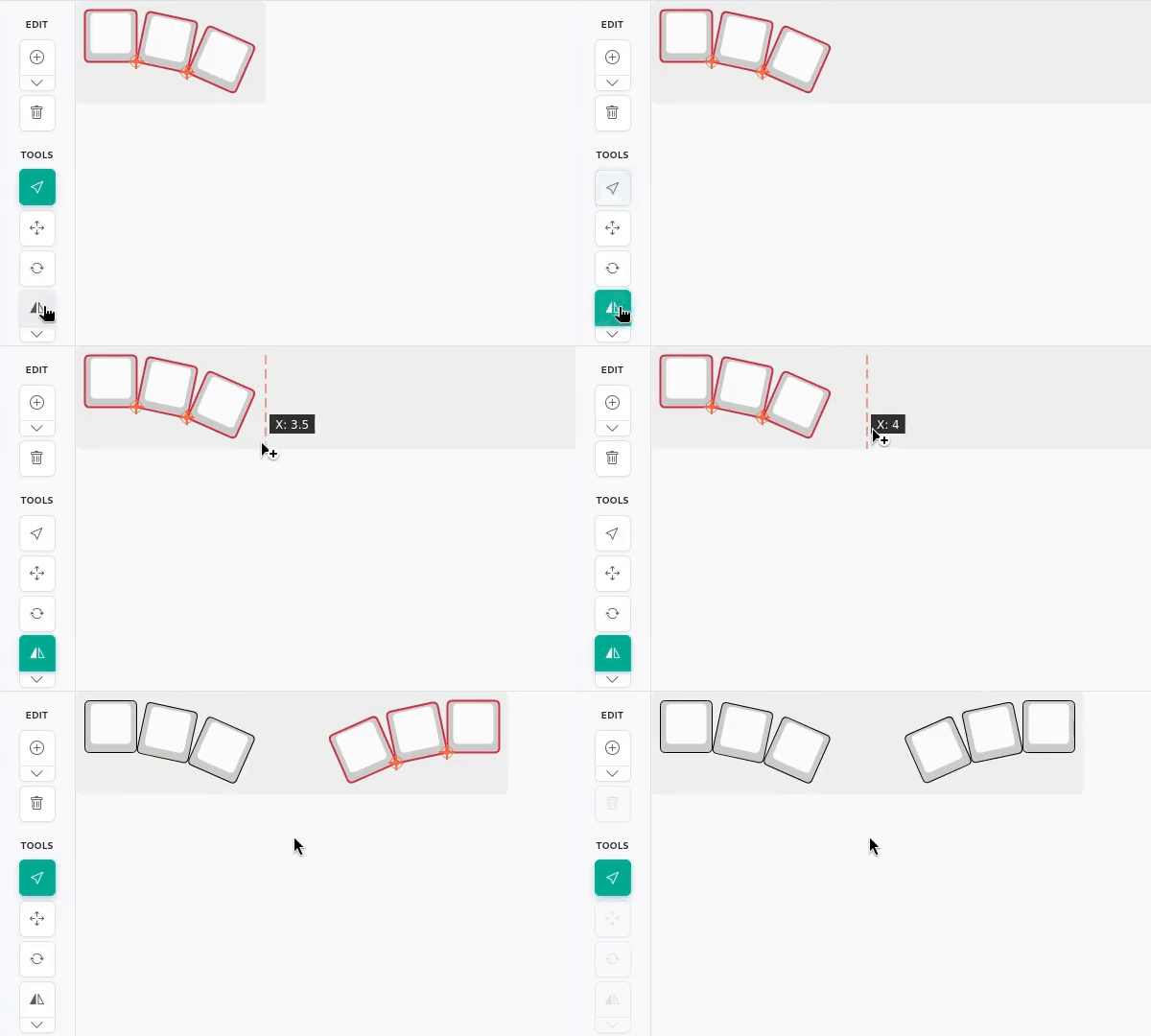
Create mirrored copies of selected keys with the Mirror Tool. Choose a mirror axis position — the axis snaps to multiples of the step size. Supports both vertical (default) and horizontal mirroring from the tool dropdown.
Using the Tool
Extra Tools
Extra tools are grouped under a single button in the left toolbar. There are four:
- Legend Tools — bulk legend editing
- Add Switch Matrix Coordinates — assign VIA-style row/column labels
- Move Rotation Origins — recalculate key positions with a new rotation reference point
- Theme Tools — apply color themes to the layout
Legend Tools
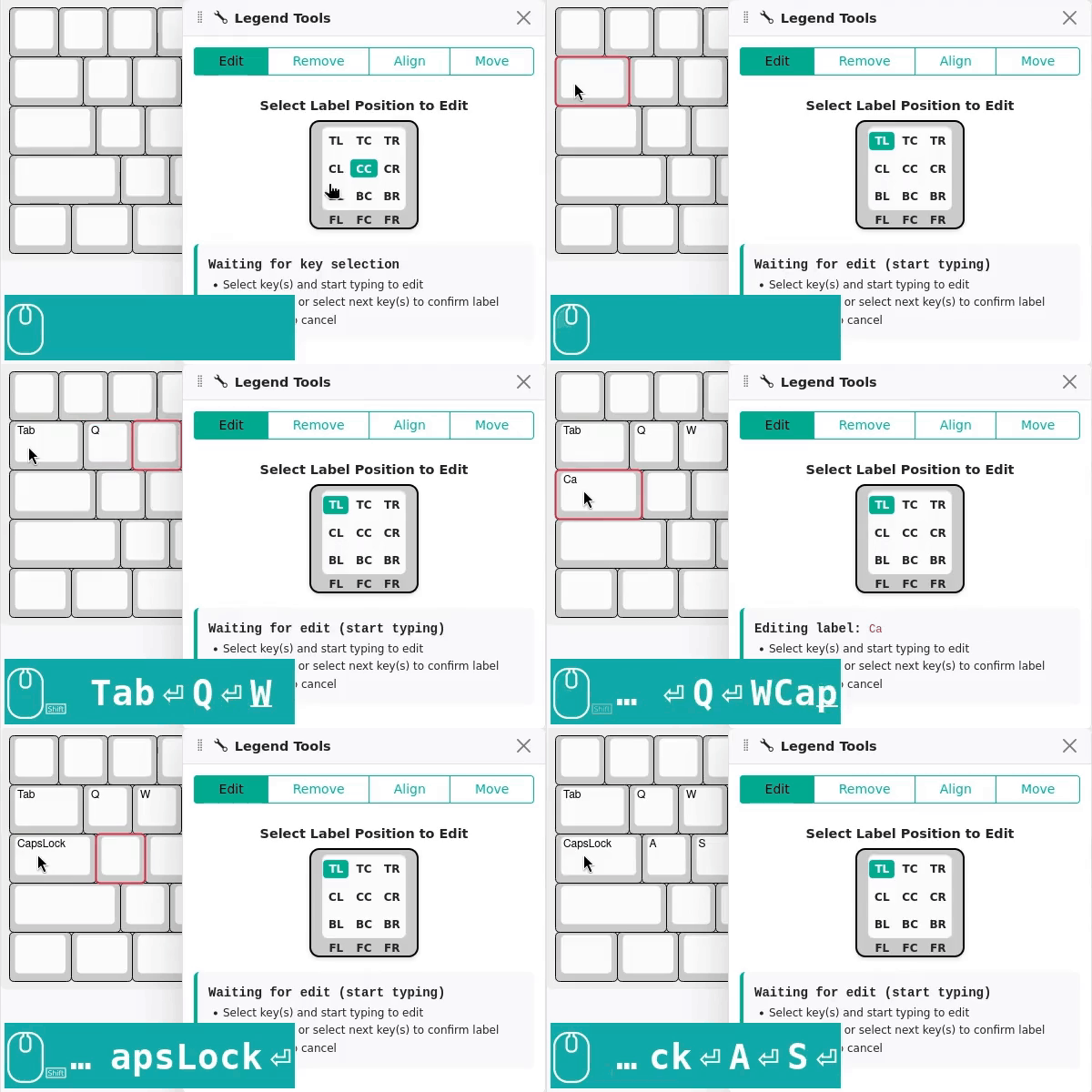
Legend tools provide quick canvas-oriented label editing in four modes:
| Mode | Description |
|---|---|
| Edit | Direct label assignment with auto-advancement to next key after Enter |
| Remove | Remove all labels at the selected label position |
| Align | Change label alignment |
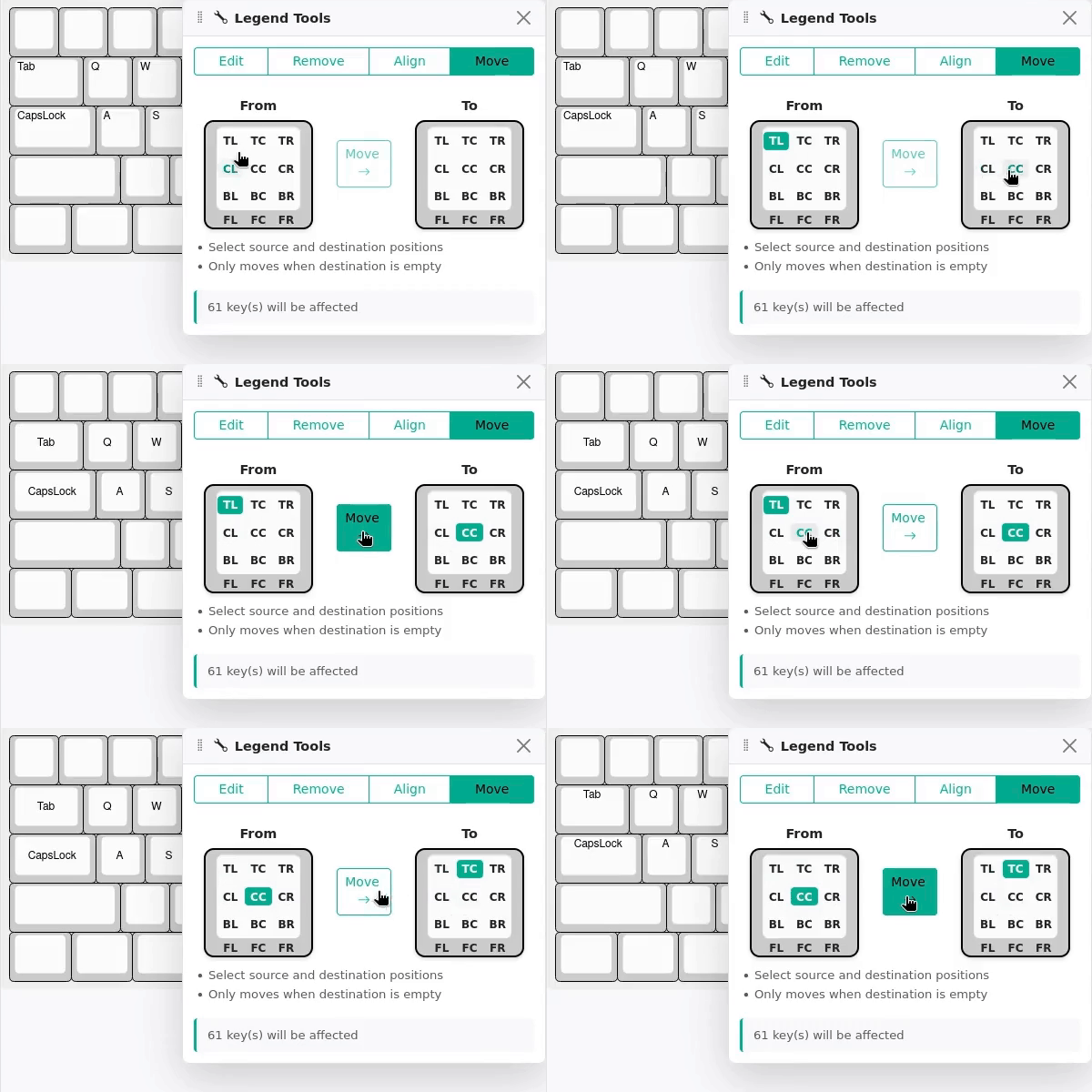
| Move | Move labels from one position to another |
| Edit Mode | Move Mode |
|---|---|
 |  |
TIP
Legend Tools are designed for easier bulk label editing compared to modifying labels one at a time in the Key Properties panel.
Add Switch Matrix Coordinates
This tool assigns VIA-style row,column labels (e.g., 0,0) to each key, enabling compatibility with VIA and Vial configurators and the PCB Generator.
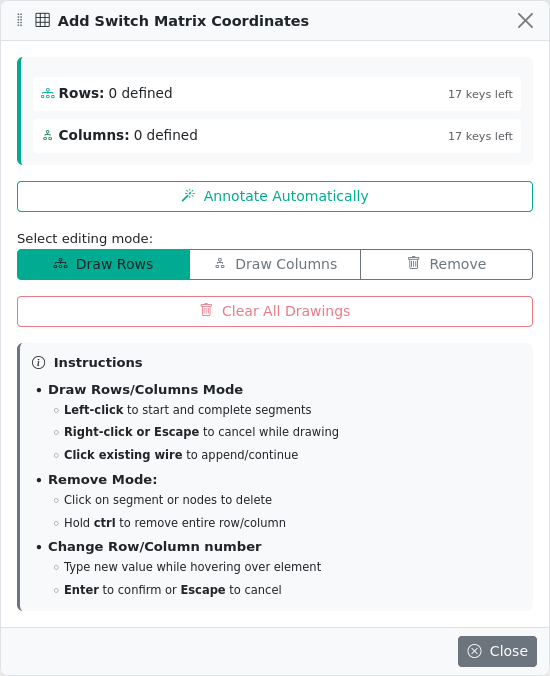
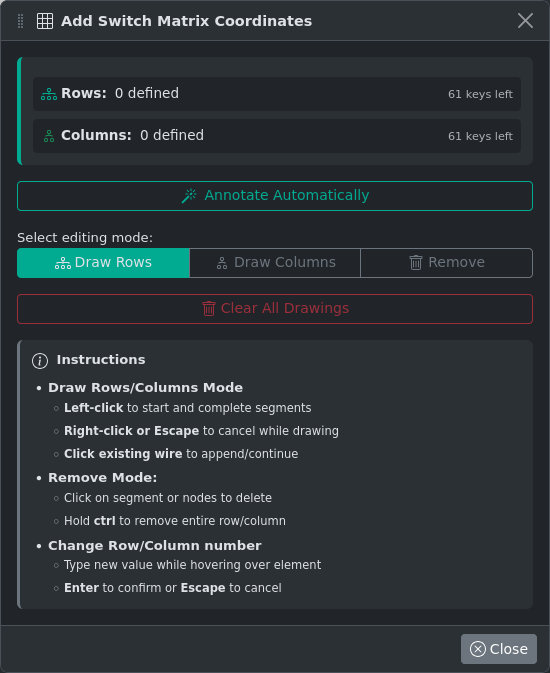
The tool provides an Annotate Automatically option that assigns coordinates intelligently based on key positions. You can also draw rows and columns manually:
WARNING
Automatic annotations may not produce correct results for certain keyboard layouts. Ergonomic layouts with significant column splay (angled columns) are particularly affected and may require manual correction of row/column assignments. Standard rectangular layouts typically produce good results. See issue #51 for details.
| Draw Rows | Draw Columns | Remove |
|---|---|---|
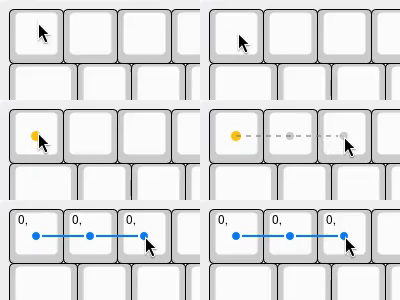 | 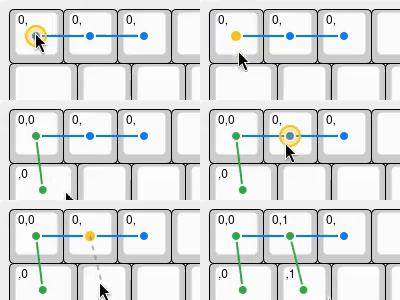 | 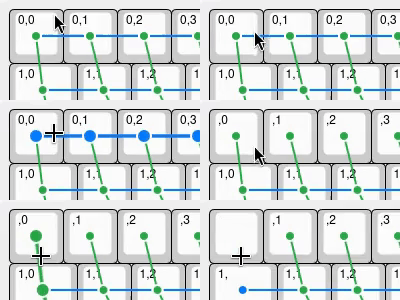 |
- Left-click to start and complete wire segments
- Right-click or Escape to cancel
- Click an existing wire to append to it
- Hold Ctrl while clicking a wire to remove the entire row/column
To renumber a row or column: hover over it in any editing mode and type the new number.
TIP
To export a PNG with the matrix wire overlay visible, open the Add Switch Matrix Coordinates tool first, then use Export → Download PNG.
Move Rotation Origins
The Move Rotation Origins tool reassigns the rotation origin point for keys without changing their visual position on the canvas. This is useful when you want to reference a different pivot point for subsequent rotations — for example, after repositioning a key cluster, you may want the rotation origin to be the new key center rather than the original one.
The tool operates on selected keys, or on all keys if nothing is selected. Two modes are available:
- Use key centers — Calculates and sets the rotation origin to the geometric center of each key individually.
- Manual position — Sets the rotation origin to a fixed X/Y coordinate (in U) for all affected keys.
Theme Tools
The Theme Tools panel applies color themes to the entire layout in bulk. Open it from Extra Tools → Theme Tools.
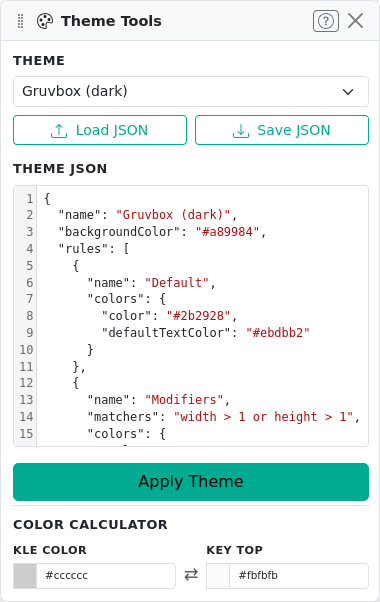
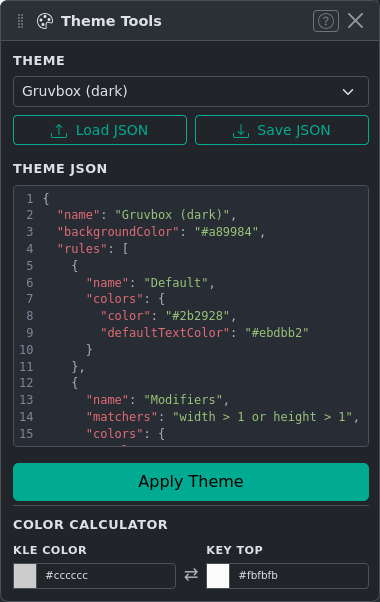
Choose from several built-in themes in the dropdown:
| Theme | Description |
|---|---|
| Classic | Light gray keys on a gray background — the classic KLE look |
| Dark | Dark gray keys on a near-black background |
| VIA | Light gray alphas with darker modifiers, similar to VIA's default display |
| Gruvbox (dark) | Gruvbox color palette with dark background |
Themes are defined as JSON objects with named rules and matcher expressions that target specific keys. You can edit the current theme directly in the JSON editor within the panel, or load and save theme files using Load JSON and Save JSON.
The panel also includes a Color Calculator for converting between stored KLE keycap colors and the rendered key-top colors.
See Color Themes for the full theme format, matcher syntax reference, and examples.
Label Search
Press / to open the label search bar. Type to find keys by their label text. Matches are highlighted on the canvas. Use Enter or the up/down arrows to cycle through matches. Press Escape or / again to close.
TIP
To export a PNG with search match highlighting visible, keep the search bar open before using Export → Download PNG.
Canvas Settings
A settings panel is accessible from the toolbar (gear icon). Current settings:
| Setting | Description |
|---|---|
| Show grid | Toggles a dot grid on the canvas aligned to the current step size |
| Highlight Color | Color used to indicate selected keys. Click the swatch to change it |