PCB Generator
The PCB Generator creates KiCad project files from your keyboard layout. It generates a key matrix schematic, places switch and diode footprints according to key positions, and can optionally route connections between components.
Overview
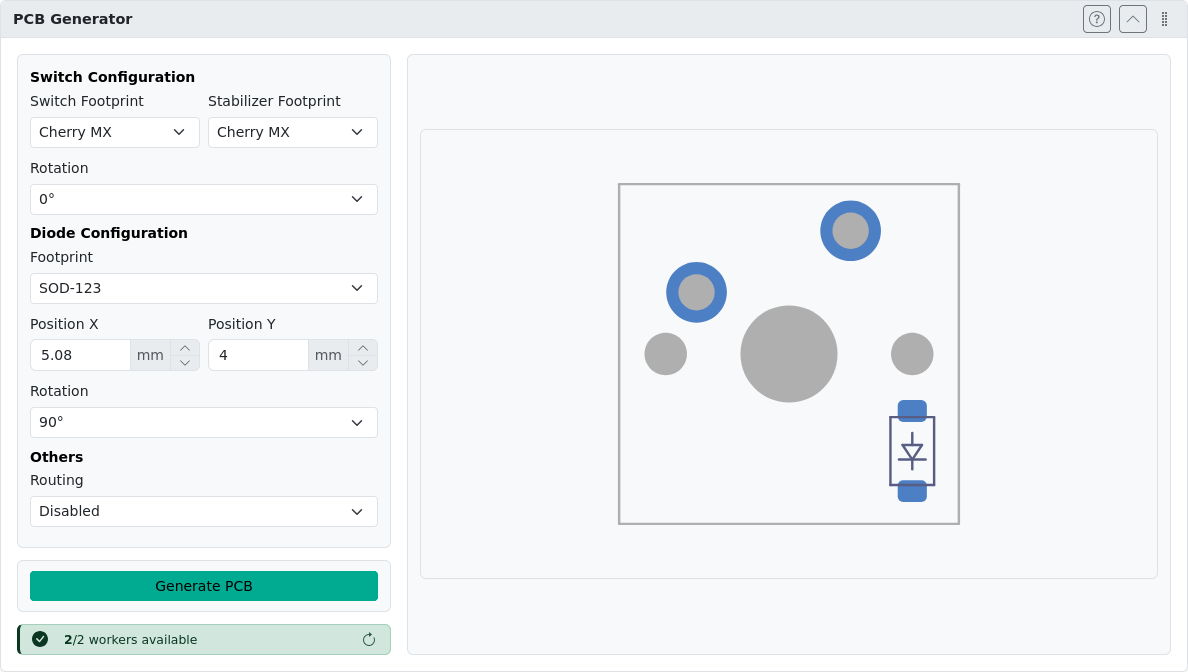
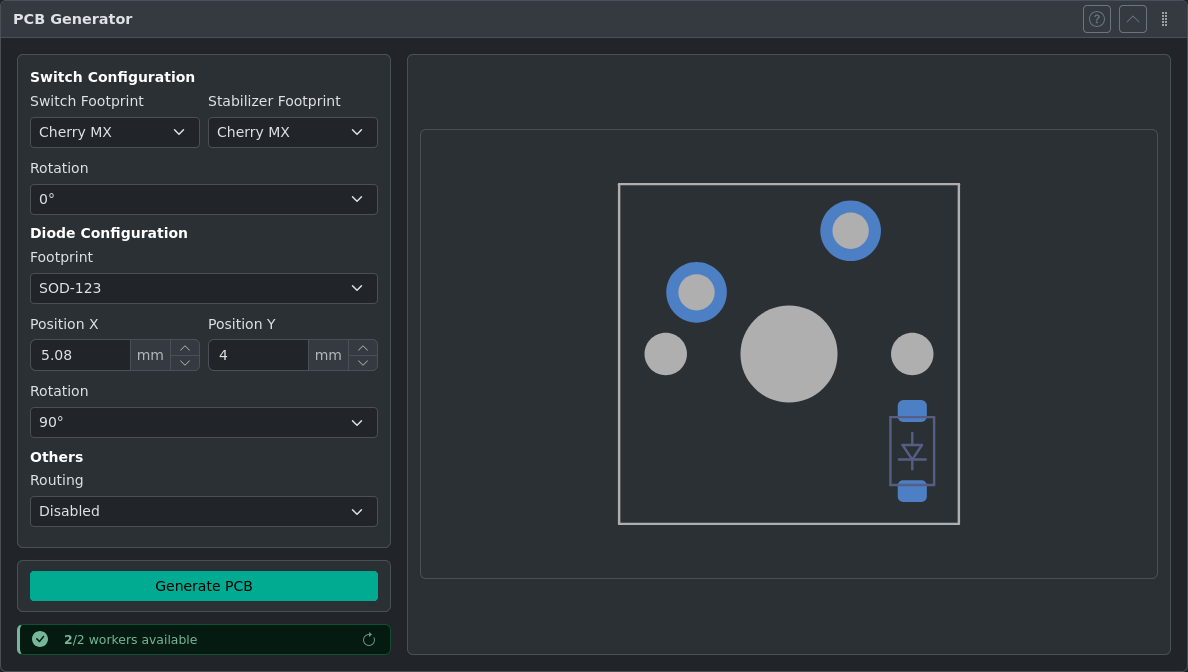
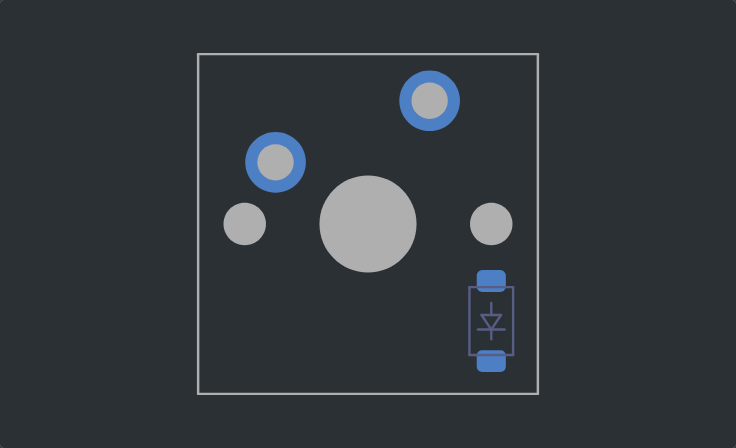
Open the PCB Generator panel. The panel displays a footprint preview and generation controls. After project generation the footprint preview is replaced with preview of the resulting schematic and PCB file.
Prerequisites
Before generating a PCB, your layout must have:
- Matrix coordinates — Each key must have row/column assignments in VIA label format (e.g.,
0,0for row 0, column 0). Use Add Switch Matrix Coordinates if not already set. - Maximum 150 keys — Layouts with more than 150 keys are not supported.
Matrix coordinates determine how switches are wired in the keyboard matrix.
Matrix Coordinates
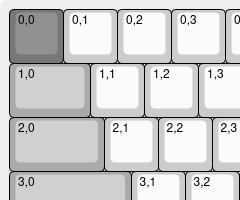
Matrix coordinates in kle-ng use VIA label format. Each key's top-left label contains the row and column assignment as row,col (e.g., 0,0, 0,1, 1,0).
The easiest way to assign matrix coordinates is to use Add Switch Matrix Coordinates, which can annotate your layout automatically or let you draw rows and columns manually.
Generating a PCB
- Verify your layout has matrix coordinates assigned
- Open the PCB Generator panel
- Configure switch, diode, and routing options as needed. Diode Configuration sets the diode footprint, its Position relative to the switch centre (mm), the Side of the board it goes on (Back by default) and its Rotation. Footprints are SMD (SOD-123, SOD-123F, SOD-323, SOD-323F) or through-hole, lying flat: DO-34, DO-35 (the package of the common 1N4148) or DO-41 (1N4001 and similar), each with 7.62, 10.16 or 12.70 mm between the holes. For a through-hole diode, Position is where pin 1 (the cathode) goes, KiCad's footprint origin, not the middle of the body: a 7.62 mm DO-35 standing beside an MX switch is at X
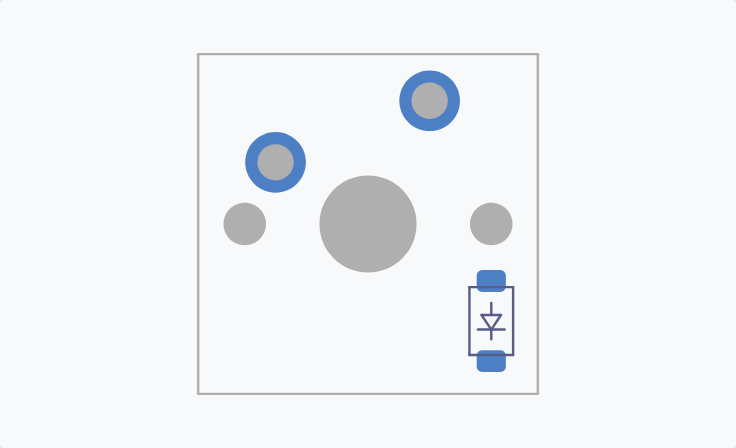
8.89, Y3.81, rotation90°. With a through-hole diode, Full (automatic) routing can leave some row connections for you to finish in KiCad (its DRC lists them); the switch–diode tracks are routed. The preview checks the placement against the footprints' courtyards (the area each part needs, as in KiCad's DRC): when the diode, LED or capacitor would sit on top of the switch or of each other on the same side, when a hole or lead of one is inside another's courtyard (through-hole leads reach both sides), or when one reaches into a part of the next key (keys are 19.05 mm apart), a red message names them and their courtyards are outlined. The preview shows only one key, so a next key involved in a collision is drawn faded around it, with its 1u outline, pads and courtyards, and this key's outline for comparison. For example, a front-side diode inside an MX switch's outline would be under the switch housing. The message is a warning: Generate PCB still works. - Use the preview window to check key-diode placement (a dashed line shows which switch pad the diode connects to, and with Add per-key LED another joins LED pad 3 (VCC) to capacitor pad 1 until a track connects them, so you can place the capacitor next to it; ground isn't drawn, as it usually goes through a ground plane; hover a pad or hole to see its name and centre, in mm from the switch centre), and optionally draw the switch–diode tracks. The preview is the same with every Routing option, the track editor only adds its tools: the View controls (copper layer eye buttons, Grid and zoom), the grid, the mouse wheel (zoom) and middle-drag or
Space+drag (pan) always work, and the readout shows the cursor position in mm from the switch centre. You can also place the diode, and the LED and its capacitor when Add per-key LED is on, in the preview, with any Routing option. Click a part to select it: it is outlined, and the readout shows its position and rotation (Escor a click elsewhere clears the selection).Shift+click adds a part to the selection or removes it, and dragging a box from empty space selects several (left to right selects the parts inside it, right to left also those it touches; the switch stays where it is and is never selected). To move parts, hold the middle mouse button (the scroll wheel) on the body or pads of one and drag, as keys are moved in the layout editor: a selected part moves with the rest of the selection, keeping their distances, any other part moves alone. In the track editor, the selected tracks and vias move with the selected parts (a box can take both), as one step: undo (Ctrl+Z) puts the parts and the tracks back, and in the track editor it undoes a part move without tracks too; tracks to anything that stays put come apart, and moving the diode with its tracks doesn't make the preset stale.Shift+Rturns each selected part (or the ones being dragged, or the one under the cursor) 90° clockwise.Escduring a drag puts the parts back. While dragged, parts snap to the Grid set in the View controls over the canvas, as in KiCad; the Position fields still take any exact value. The middle button pans wherever there is no part, and in the track editor a click on a pad still starts a track. Moving or turning a part sets its Position and Rotation in Diode Configuration or on the LEDs tab.
- Click Generate PCB
- Wait for the server to process your layout
- Once complete, preview renders will be displayed
- Click Download ZIP to save the archive, or New Task to start over
The preview offers Schematic, PCB Front and PCB Back tabs. When the project spans multiple schematic sheets — for example with Add per-key LED enabled, which splits the design into a key-matrix sheet and an LED-chain sheet — each sheet gets its own top-level tab (Main, Key Matrix, LED Chain, PCB Front, PCB Back), so you can review every sheet without downloading the ZIP first.
WARNING
The preview does not support displaying traces for Routing option enabled.
Automatic Routing Limitations
The automatic router attempts to connect switches to diodes using a basic algorithm that finds the shortest path with 45° angles. Important limitations:
- Incomplete routing — The router may leave connections unrouted if it encounters layout obstacles. It does not try alternative paths; it simply skips difficult connections.
- DRC required — Always run KiCad's Design Rule Check after generation to identify unrouted nets.
- Manual finishing needed — The generated PCB is a starting point and requires manual review and completion in KiCad.
Saving and Sharing Settings
The JSON tab shows the current switch, diode, routing, and LED settings as an editable JSON document, so you can save a configuration as a preset and reuse or share it.
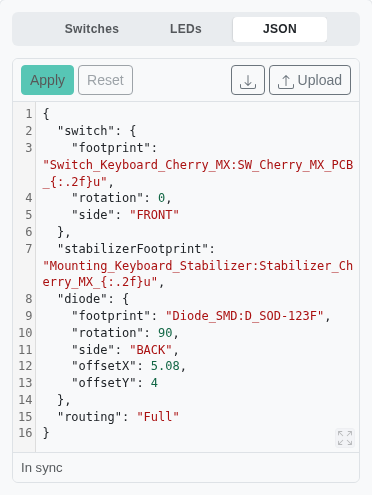
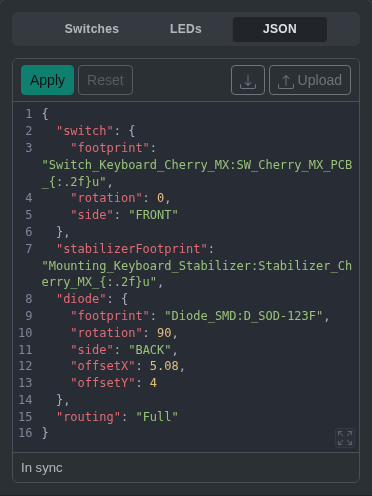
- Edit — Change values directly in the editor and click Apply (or press
Ctrl+Enter) to update the form. Invalid JSON is flagged in the status bar and cannot be applied; Reset discards your edits. - Defaults — Load the default settings into the editor. Click Apply to use them (this also removes any drawn track preset), or Reset to keep your current settings.
- Download — Save the current settings as
pcb-settings.json. - Upload — Load a previously saved
pcb-settings.json. Valid files are applied immediately; invalid files are loaded into the editor so you can correct them.
The editor always reflects changes made on the Switches and LEDs tabs. Only active sections are written: the led section appears only when Add per-key LED is enabled, and its nested capacitor section only when Add capacitors is enabled. Settings are also remembered between sessions in the same format.
Drawing Switch–Diode Tracks
Instead of the automatic router, you can draw the tracks between one switch and its diode, and have them copied to every key. These tracks are the track preset. Routing decides where switch–diode tracks come from:
- Switch-diode only (automatic) and Full (automatic): the generator's router draws them.
- Switch-diode only (preset) and Full (preset): you draw them, and the footprint preview turns into the track editor. Full also routes rows and columns.
- Disabled: nothing is routed.
Choosing another option after drawing tracks asks before removing them (switching between the two preset options keeps them). In a preset option, Generate PCB needs at least one drawn track.
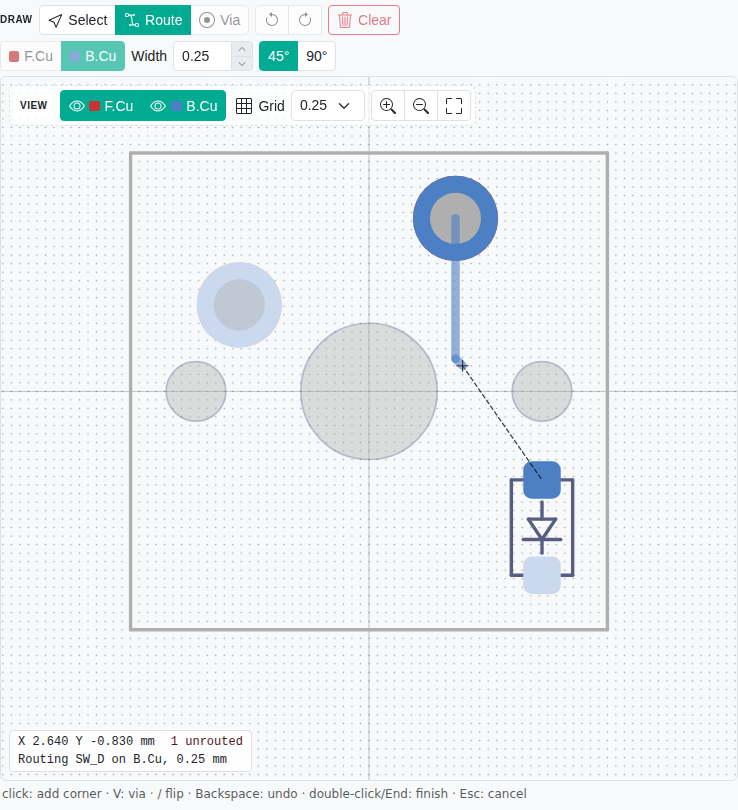
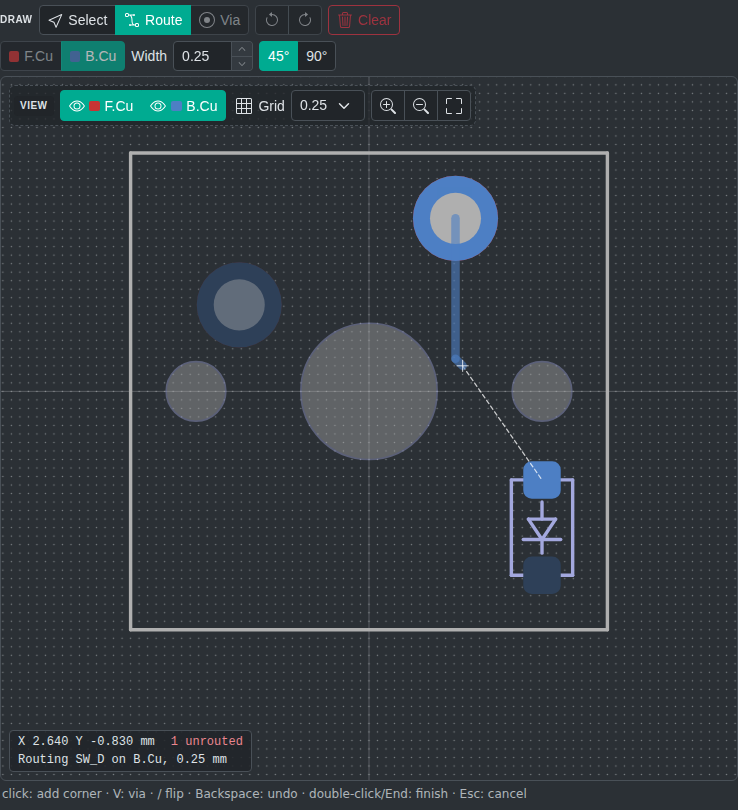
The editor shows the copper pads of the switch and diode (and of the LED and capacitor when Add per-key LED is on). A dashed line marks each connection that still needs a track: switch pad 2 to the diode anode. It shows in every routing option, so you can see where the diode connects while placing it. Tracks are drawn with the switch at 0° on the front side; the generator rotates them with each key.
Drawing a track:
- Choose Route (or press
Xwith the cursor over a pad) and click the pad to start from. - Move the cursor: the track follows it with a straight and a 45° part (or an L shape with 90°). Press
/to swap the order of the two parts. - Click to add a corner. Clicking a pad of the same connection finishes the track; double-click or
Endfinishes it at the last corner. - To change layer, press
V: a via is placed at the cursor, and the track continues on the other layer. Backspaceremoves the last via or corner,Esccancels the track.
The cursor snaps to pad centres, to track ends and vias, and to the grid; the Grid spacing (mm) is set in the View controls on the canvas. The Draw toolbar above the canvas sets how new tracks are drawn: the copper layer (F.Cu or B.Cu), Width (mm) and the corner angle. In a narrow window the toolbar shows icons only; hover a button to see its name. W and Shift+W step through common widths. To place vias on their own, choose the Via tool and click where each goes (a via with a dashed red outline can't go there; X starts a track from it, Esc goes back to Select). New vias are 0.6 mm with a 0.3 mm drill (KiCad's default), or the size you last set on a via.
The editor checks every click against KiCad's default design rules (0.2 mm clearance, 0.25 mm to holes) and against shorts with pads of other connections. While the track under the cursor breaks a rule it is drawn red and dashed; a click there is refused, and the readout in the bottom-left corner of the canvas says why. The readout also shows the cursor position (or the pad under the cursor), the track being drawn, and DRC clean once every connection is routed without errors. The line under the canvas lists what the mouse and keys do in the current tool.
With Add per-key LED, the LED and capacitor pads have the connections the generator gives them, so you can route them too: VCC (LED pad 3, capacitor pad 1), GND (LED pad 1, capacitor pad 2), and the LED's DIN (pad 2) and DOUT (pad 4), its links to the previous and next LED. A track from one of them to the edge of the key can meet the same track of the next key. Only the switch–diode connections must be routed: the others never count as unrouted, and once VCC is routed its dashed line goes. Tracks that don't reach a pad or another key's track are removed from the board as dangling.
Editing tracks: with Select, the track or via under the cursor is outlined; click it to select it, Shift+click to add to the selection, or drag a box from empty space (left to right selects tracks inside it, right to left also those it touches). Double-click a track, or press U, to select the tracks and vias connected to it, up to the pads; Ctrl+A selects all tracks on the visible layers. The panel in the top-right corner of the canvas (under the View controls when the canvas is narrow) changes the width and layer of the selected tracks and the diameter and drill of the selected vias, or deletes the selection (Delete). Vias must be at least 0.5 mm with a 0.3 mm drill and a 0.1 mm copper ring, KiCad's limits for a new board. Clear in the toolbar removes all tracks. Clicking a pad highlights its connection; clicking a pad that still has no track (it has a dashed line) switches to Route and starts a track there.
Dragging tracks works like KiCad's router (45° mode, highlight collisions). With Select, drag a track sideways to move it: it keeps its direction and its corners stay at 45°/90°. A neighbour at a 90° corner stretches along its own line; one at a 45° corner follows at 45°, and flips to the other diagonal when you drag past its far end. An end on a pad, via or junction stays put, joined by a new 45° track. Drag a corner (or a free track end) to move it; the tracks on both sides are rebuilt at 45°. Drag a via to move it: the tracks ending on it, on both layers, follow and are rebuilt at 45°, as in KiCad. The drag snaps to the grid and lines tracks up with pads and track ends of their connection; tracks that shrink to nothing disappear and tracks that line up merge while you drag. So a route doesn't have to be exact while drawing: put a corner close to where it belongs, finish on the pad, then drag the segment into line to remove the extra jog. The drag can pass over holes and pads: errors are marked while dragging, and if you let go where there is one, the track goes back to the last position without errors. Esc during a drag puts the tracks back.
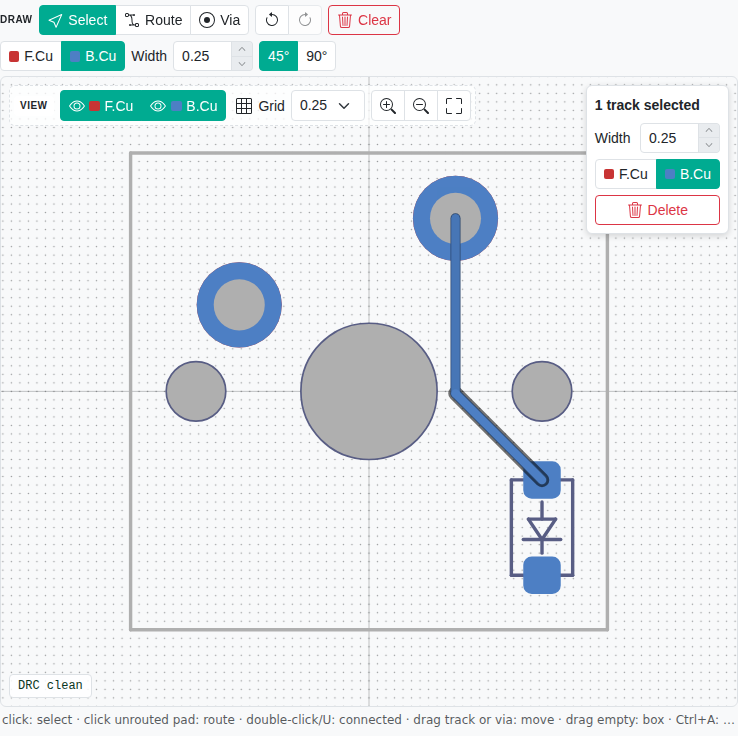
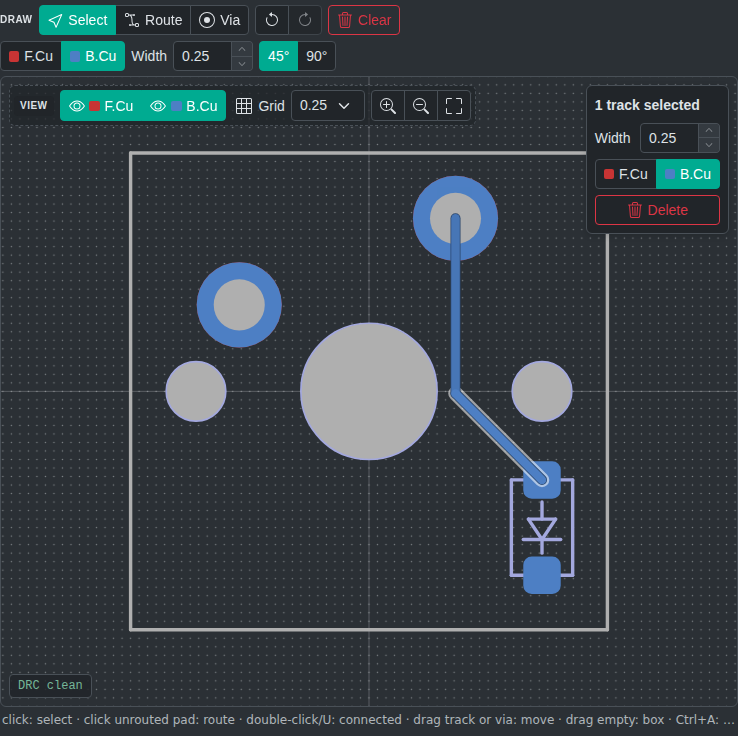
Undo and redo work for every change, Clear included (Ctrl+Z, Ctrl+Shift+Z or Ctrl+Y, or the toolbar buttons). Navigate with the mouse wheel (zoom) and middle-drag or Space+drag (pan). The View controls on the canvas don't change the tracks: the eye buttons hide a copper layer with its pads and tracks, Grid sets the snap grid, drawn as dots (a coarser multiple of it when zoomed out), and the zoom buttons zoom in, out and to fit.
Tracks are saved with the other PCB settings and are sent with Generate PCB. They are only supported for front-side switches, so the preset routing options are unavailable when the switch is on the back.
When Settings Change
Tracks only connect the pads they were drawn around. If you change the switch footprint, the diode footprint or the diode position, rotation or side afterwards, a message over the preview says what changed:
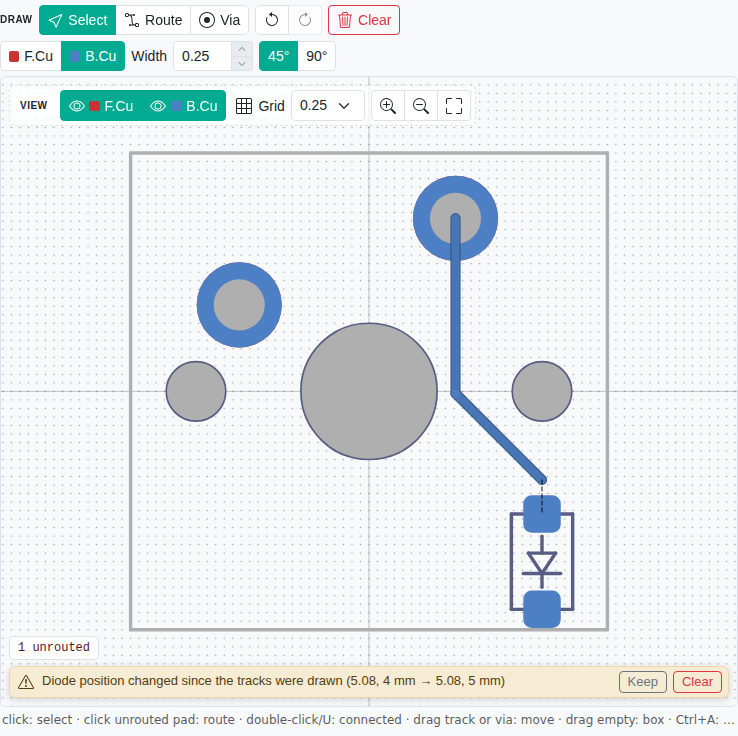
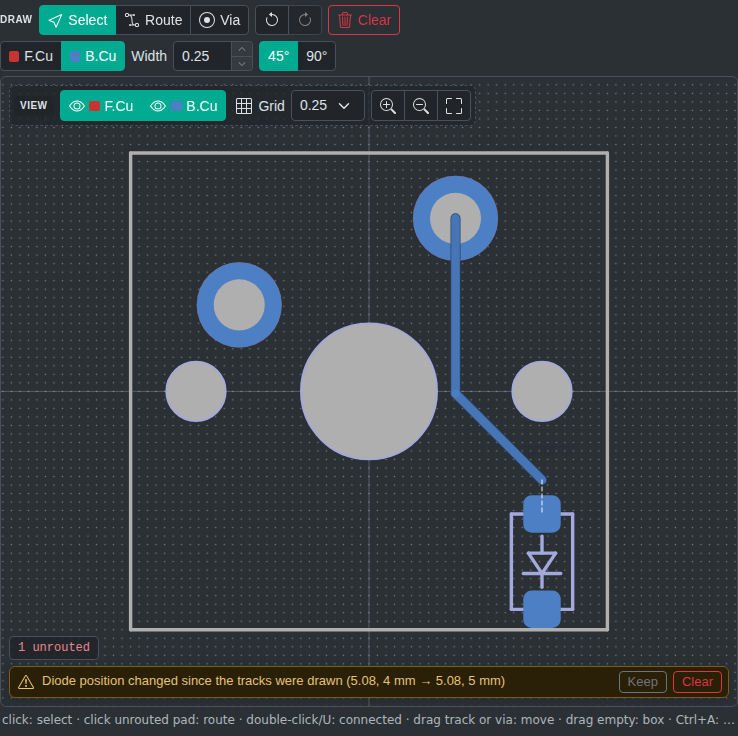
Check the tracks in the editor: errors and unrouted connections are marked. Editing the tracks doesn't hide the message. Keep hides it for the current settings, Clear removes all tracks (undo brings back either). When several settings changed, hover the message to see the old and new values.
Track Presets in JSON
The tracks are part of the JSON settings, as a tracks section, so they are saved and shared with the rest of the configuration. You can also write or paste a preset there:
{
  "routing": "Full",
  "tracks": {
    "version": 1,
    "items": [
      {
        "type": "track",
        "start": { "x_nm": 2540000, "y_nm": -5080000 },
        "end": { "x_nm": 2540000, "y_nm": 60000 },
        "width_nm": 250000,
        "layer": "B.Cu"
      },
      {
        "type": "track",
        "start": { "x_nm": 2540000, "y_nm": 60000 },
        "end": { "x_nm": 5080000, "y_nm": 2600000 },
        "width_nm": 250000,
        "layer": "B.Cu"
      }
    ]
  }
}
This example connects pad 2 of a Cherry MX switch to the anode of the default SOD-123F diode (placed at 5.08, 4, rotated 90, on the back), passing between the center hole and the right side hole. It is what the editor produces when you route from switch pad 2 to the diode anode.
- Coordinates are in nanometres (1 mm = 1000000), relative to the switch center, with the switch at 0° on the front side and +Y pointing down, as in KiCad.
- Items are
track(start,end,width_nm,layer) orvia(position,diameter_nm,drill_diameter_nm). Layers areF.CuorB.Cu. Arcs are not supported yet. - Routing: a
trackssection selects the preset option of itsrouting, and an emptyitemslist is a preset option with nothing drawn yet. With"routing": "Disabled"the section is dropped. - Diode placement comes from the diode settings, so a preset must not contain a
diodessection. - basis (optional) records the footprints and diode placement the tracks were drawn for. The editor writes it; it drives the settings-changed warning.
To create a preset in KiCad, route one switch–diode pair on a template board and convert it with kbplacer:
python -m kbplacer.connection_preset to-json diode_template.kicad_pcb > preset.jsonThen copy the items (and basis) of preset.json into the tracks section.
If a saved preset can't be read (for example one saved by a newer version), it is dropped with a warning and the remaining settings are kept.
After Downloading the PCB
The downloaded ZIP archive contains two files:
.kicad_sch— Schematic with the switch matrix.kicad_pcb— Board file with switch footprints placed according to key positions and matrix coordinates, diode footprints for each switch, routed connections (if routing was enabled)
Extract the ZIP and open the .kicad_pcb file in KiCad 9+ to continue PCB design.
Next Steps in KiCad
Typical next steps after downloading:
- Add a microcontroller — Place your MCU footprint (e.g., Pro Micro, RP2040) and connect row/column lines.
- Add a USB connector — Route the data lines from the MCU to the connector.
- Add mounting holes — Use the footprint library to place M2 or M3 standoff holes.
- Add the edge cut — Generator does not include PCB outline; create it to match your intended case.
- Run DRC — Use KiCad's Design Rule Check to catch errors before sending to fabrication.
Tips and Best Practices
Download and Service Limits
- Download expiration — Generated PCB files expire after 1 hour.
- Rate limiting — There is a 5-second cooldown between generation requests.
- Worker status — The PCB generator runs on a remote worker. If the service is temporarily unavailable, try again later.
KiCad Compatibility
Generated files are compatible with KiCad 9+. Open the file in KiCad to add mounting holes, USB connector, microcontroller, and other components.
Troubleshooting
Missing VIA JSON Export
"Download VIA JSON" option is missing — This is a separate export from Import & Export. For PCB generation, you only need matrix coordinates on the keys, not a full VIA metadata block.
Missing Keys in Output
Keys are missing from the generated PCB — Only keys with valid matrix coordinates (row,col in the top-left label) are included. Use Add Switch Matrix Coordinates to assign coordinates to all keys, then verify none are missing.
Service Unavailability
The PCB worker is unavailable — The generator uses a remote server. If requests fail, try again after a few minutes. Your layout data is not lost — regenerate from the same layout.
Privacy note
This feature sends your layout data to a backend server for processing. Generated files are stored for 1 hour and then automatically deleted. No data is used for any other purposes.